
67 Fragments
Six-slot audio recorder and clocked fragment sequencer with browser librarian, MIDI pitch control, random CV outputs, and an alternate long-sample variation mode.
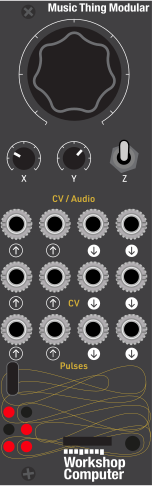
Panel
README
Fragments
Fragments is a six-slot audio recorder and clocked fragment sequencer for the Music Thing Modular Workshop System Computer and Workshop Computer.
Each slot holds up to 250 ms of stereo audio at 48 kHz. Samples can be captured from the audio inputs or imported with the included browser librarian. A bank of 21 patterns sequences the slots, while shift, repeat division, reverse probability, playback mode, MIDI pitch, and configurable random CV outputs provide variation.
The two audio channels remain independent when recording from the card, so they can be used as stereo or as two unrelated mono sources.
Quick start
- Patch audio into either audio input.
- Move Z up and use Main to select one of the six slots.
- Send a gate to Pulse In 2 to record into that slot.
- Return Z to the middle position.
- Send a clock to Pulse In 1.
- Move Main to select a pattern, X to shift its slot numbers, and Y to set the repeat division.
The LEDs show the selected slot while Z is up and the active playback slot while Z is in the middle.
Controls
Z up: slot setup and recording
| Control | Function |
|---|---|
| Main | Selects recording slot 0-5 |
| X | Sets the selected slot's playback mode |
| Y | Sets the selected slot's reverse probability |
| Pulse In 2 | Records the selected slot while high |
X divides its travel into four playback modes:
| X position | Mode | Behavior |
|---|---|---|
| 0-25% | Loop | Repeats until the sequencer moves to another step |
| 25-50% | One Shot | Plays its planned repeats, then becomes silent |
| 50-75% | Interrupt | Plays its planned repeats, then returns to live audio |
| 75-100% | Passthrough | Ignores the recording and passes live audio |
X and Y use pickup behavior. Entering Z-up mode does not immediately overwrite a slot's saved settings; the setting changes only after its knob moves.
On a clean card, all six slots start in One Shot mode with 0% reverse probability. A saved kit restores its own per-slot mode and reverse settings.
Z middle: pattern playback
| Control | Function |
|---|---|
| Main | Selects one of 21 patterns |
| X | Shifts every slot number in the pattern by 0-5, wrapping around |
| Y | Selects x1, x2, x4, or x8 repeat division |
| Pulse In 1 | Advances the pattern on each rising edge |
Main, X, and Y respond only after they move in middle mode. This prevents stored settings from jumping when Z moves between positions.
At x2, x4, and x8, the most recently measured clock period is divided into that many repeat windows. At x1, the fragment loops normally until the next clock.
Variation boot mode
Hold Z down while rebooting the card with the Computer's boot/reset button to start in Variation mode for that session. In this mode, Pulse In 2 records one long sample of up to 72,000 samples, or 1.5 seconds at 48 kHz, using the same memory that normally holds six shorter slots. Patterns play that one sample six different ways instead of sequencing six different slots. Reboot normally to return to standard slot-pattern playback.
| Pattern value | Variation |
|---|---|
| 0 | Normal speed |
| 1 | 2x speed, one octave up |
| 2 | 3x speed, one octave and a fifth up |
| 3 | Reverse |
| 4 | Reverse at 2x speed |
| 5 | 0.5x speed, one octave down |
In Z-middle playback, X still shifts the pattern, but in Variation mode it rotates the variation numbers instead of slot numbers. With Z up, Main controls a +/-24 semitone pitch offset with a small no-pitch zone at the center, X sets the global Variation playback mode, and Y sets reverse probability. Reverse probability flips the natural direction of the variation: forward variations can play backward, and reverse variations can play forward. MIDI pitch still applies globally on top of the variation speed. The initial Z-down release is ignored so the boot gesture does not accidentally reset or arm a save/clear command.
Variation mode adds a 2 ms playback de-click at sample edges and step retriggers. Recording stays raw, so standard mode keeps the sharper high-clock behavior.
Z down: reset, save, and clear
- Tap and release Z down to reset the pattern to its first step.
- Hold Z down for two seconds, until all six LEDs flash, to arm the kit command.
- Release Z and tap once to clear all samples. Clear waits 150 ms before acting.
- Tap twice within that 150 ms window to save instead. All six LEDs light briefly when the save completes.
- If no tap arrives within one second after release, the command is cancelled.
The hardware save stores the same samples, slot settings, and pattern bank as the librarian's Save command. Clear affects the current kit in memory; use the hardware or librarian save afterward if the saved kit should also be replaced.
Recording behavior
- Maximum recording length: 12,000 samples, or 250 ms at 48 kHz. Variation mode records one long sample up to 72,000 samples, or 1.5 seconds.
- Minimum accepted recording: 10 ms.
- While Pulse In 2 is held, the audio inputs are monitored directly.
- Recordings preserve their raw edges without fades, allowing short fragments to retain energy at high clock rates and playback speeds.
- Hot inputs are clamped cleanly when stored, preventing digital wraparound distortion during capture.
- Playback uses linear interpolation for smoother pitch and speed changes.
- Only patched audio inputs are recorded.
- In standard mode, recording one channel preserves existing material on the other channel.
- In Variation mode, recording replaces the long sample; unpatched channels are cleared and remain silent during playback.
- If neither audio input is patched, the slot is left unchanged.
- In standard mode, an empty or unrecorded channel passes its corresponding live input.
Normally, Z up monitors live audio and pauses pattern playback. After Pulse In 1 has received a clock, playback continues in Z-up mode for four seconds after the most recent clock. This allows a slot to be selected or recorded without stopping an externally clocked sequence.
CV and pulse outputs
| Output | Function |
|---|---|
| Pulse Out 1 | 10 ms pulse whenever the sequencer step changes |
| Pulse Out 2 | 10 ms pulse on the first index of the pattern |
| CV Out 1 | Configurable random voltage; defaults to full-range stepped random on each step |
| CV Out 2 | Configurable random voltage; defaults to full-range slewed random on each step |
Pulse Out 2 follows the first pattern index, not slot 0, so shifting a pattern does not change where the pattern-start pulse occurs.
The web librarian can configure each CV output's calibrated voltage range, quantization, clock division, and slew time. Quantization options include chromatic, major, minor, major pentatonic, minor pentatonic, dorian, pelog, and whole tone. CV Out 2 can also be coupled to mirror CV Out 1 exactly. Use Save Current Kit To Card afterward to keep those CV settings across power cycles.
CV inputs
In middle mode, CV In 1 modulates pattern shift and CV In 2 modulates repeat division. When a CV cable is connected, X and Y become attenuators for their respective inputs.
The inputs automatically begin in unipolar mode. If a signal crosses below 0 V, that input switches to bipolar interpretation so a roughly +/-6 V signal can sweep the full control range. With no CV cable connected, X and Y work as direct controls.
USB MIDI
Fragments appears as a USB MIDI device over USB-C. For compatibility with the Workshop Computer MIDI examples, the USB product name may appear as MTMComputer or a Music Thing MIDI card name in the operating system.
Pitch and speed
- MIDI note 60 (C4) is normal playback speed.
- Notes above or below C4 change the playback speed of all slots together.
- Note On changes speed; Note Off has no assigned behavior.
- Pitch bend covers +/-12 semitones.
Knob control
| MIDI CC | Control |
|---|---|
| CC 16 | Main |
| CC 17 | X |
| CC 18 | Y |
Moving a physical knob takes control back from its MIDI CC value.
Web librarian
Open web/fragments_librarian.html in a browser with Web MIDI and SysEx support, such as Chrome or Edge.
- Select Connect MIDI and allow SysEx access.
- Choose Fragments, MTMComputer, or the Music Thing MIDI card name for both the MIDI input and output.
- Select Ping Card to verify two-way communication.
The librarian provides:
- Global playback-speed control from 0.125x to 8x.
- MIDI control of Main, X, and Y.
- Per-output calibrated CV random-voltage range, quantization, clock division, slew, and CV Out 2 coupling.
- Six sample slots with waveform trimming and audio preview.
- Copy and paste between sample slots for reusing one loaded file with different start and end points.
- Per-slot waveform zoom up to 1024x, horizontal navigation, and Fit control.
- A maximum 250 ms selection window with editable start, end, and length values.
- Per-slot Audio 1, Audio 2, or Both destination selection.
- Optional normalization to -0.25 dBFS with up to 32x gain.
- WAV, AIFF/AIFC PCM, MP3, and M4A import when supported by the browser.
- CSV pattern import and factory-pattern restoration.
- Kit save and load commands.
Imported stereo files are mixed to mono before being sent to the selected card channel or channels. Preview plays the same 8-bit sample data that will be sent to the card.
Pattern CSV format
Each CSV row is one pattern. Each value is a slot number from 0 through 5, and a row may contain 1-16 steps. The row number determines the pattern number; there is no header or pattern-number column.
0
0,1
0,2,4,2
5,4,3,2,1,0
The librarian accepts up to 21 rows. Sending fewer rows replaces only those patterns. Use Save Current Kit To Card afterward to keep the updated pattern bank across power cycles.
The current default bank is available at web/fragments_factory_patterns.csv.
Saved kits
Save Current Kit To Card stores:
- All six audio slots and their channel assignments.
- Per-slot playback mode and reverse probability.
- The complete 21-pattern bank.
- CV output range, quantization, clock division, slew, and coupling settings.
The card loads the saved kit automatically at boot. Pattern selection, shift, division, MIDI note, pitch bend, and current sequencer position are performance controls and are not saved.
Older saved kits remain compatible. If an older kit has no saved pattern bank, the firmware uses its built-in factory patterns until the kit is saved again.
Building
The ready-to-flash release file is included at UF2/fragments.uf2.
Requirements:
- Raspberry Pi Pico SDK
- CMake
- An ARM embedded GCC toolchain
export PICO_SDK_PATH=/path/to/pico-sdk
cmake -S . -B build_local -DCMAKE_BUILD_TYPE=Release
cmake --build build_local -j4
The flashable file is build_local/fragments.uf2.
To flash the card, hold BOOTSEL while connecting USB-C, then copy
fragments.uf2 to the mounted RPI-RP2 drive.
The firmware is compiled with size optimization and copied to RAM at boot. USB MIDI, web communication, flash storage, LED updates, and other slower control work run on the second RP2040 core so the 48 kHz audio path stays lean.
Memory
The six stereo buffers use 144,000 bytes:
6 slots x 12,000 samples x 2 channels x 1 byte
The current build uses 264,080 bytes across code, static data, and working RAM. The fixed buffer length should not be increased without checking the linker memory report.
License
Fragments is licensed under the Creative Commons Attribution-NonCommercial-ShareAlike 4.0 International License. See LICENSE.md.
Project files
| Path | Contents |
|---|---|
UF2/fragments.uf2 |
Ready-to-flash firmware |
src/fragments.cpp |
Sequencer, recorder, controls, MIDI, and flash storage |
src/usb_descriptors.c |
USB MIDI device descriptors |
src/tusb_config.h |
TinyUSB configuration |
lib/ComputerCard.h |
Workshop Computer hardware helper |
web/fragments_librarian.html |
Self-contained browser librarian |
web/fragments_factory_patterns.csv |
Default 21-pattern bank |
CMakeLists.txt |
Pico SDK build configuration |
LICENSE.md |
CC BY-NC-SA 4.0 license notice |